
Paid AI video tool
AI Video Eraser
Mark areas directly on a video preview to try removing an object, logo or text with AI. Draw rectangles, inspect the mask, review the credits and process your video on this page.
Videos up to 60 seconds
Prefer no mask? Try automatic watermark removalProcess your video
Upload a video, pause on a useful frame and mark the areas to erase. Apply the mask, then review the estimate before starting.

Your processed video will appear here
Upload a clip, review the estimate and start processing. This panel shows your real task progress and downloadable result.
- Choose a video of up to 60 seconds and mark areas on the paused preview. The same areas apply throughout the clip.
- Undo, clear or adjust rectangles, inspect the black-and-white mask and apply it. Sign in and check the estimate.
- Start processing, wait for the result here and check the edited area before downloading.
Processed on this website
See a real masked video edit
A five-second excerpt of the licensed blue-mug clip, processed by this website with the rectangular mask shown below.
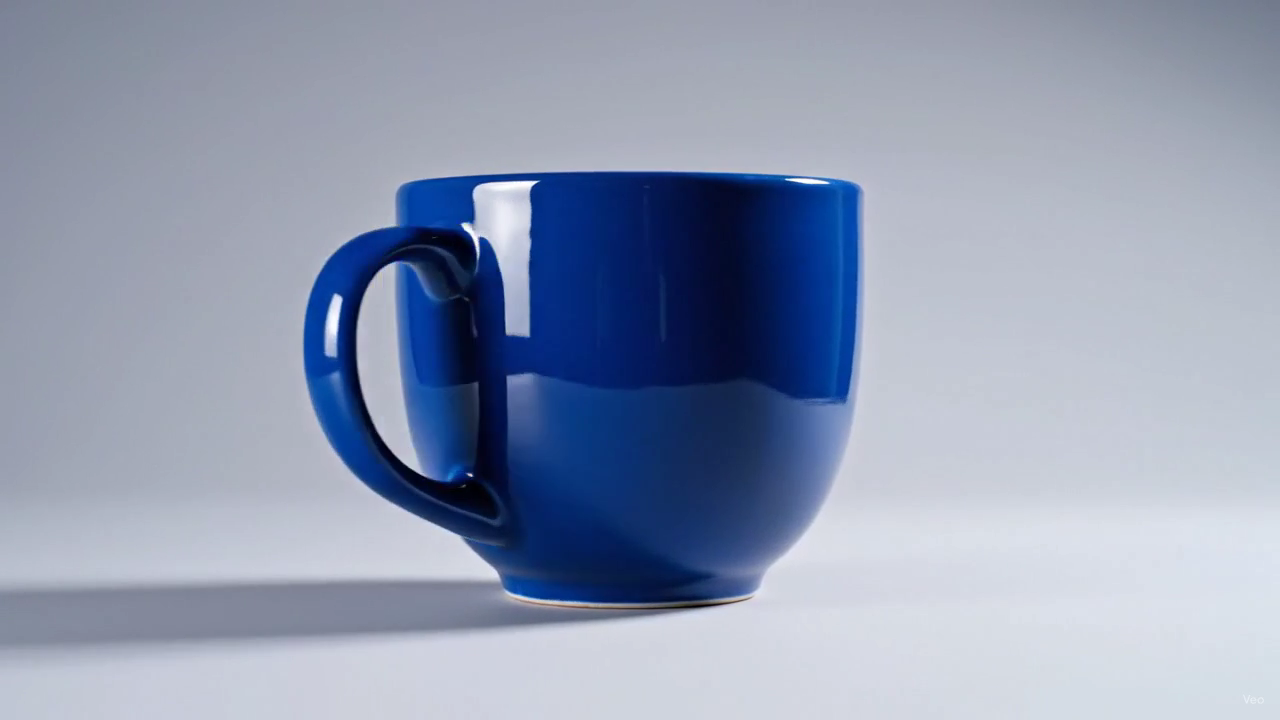
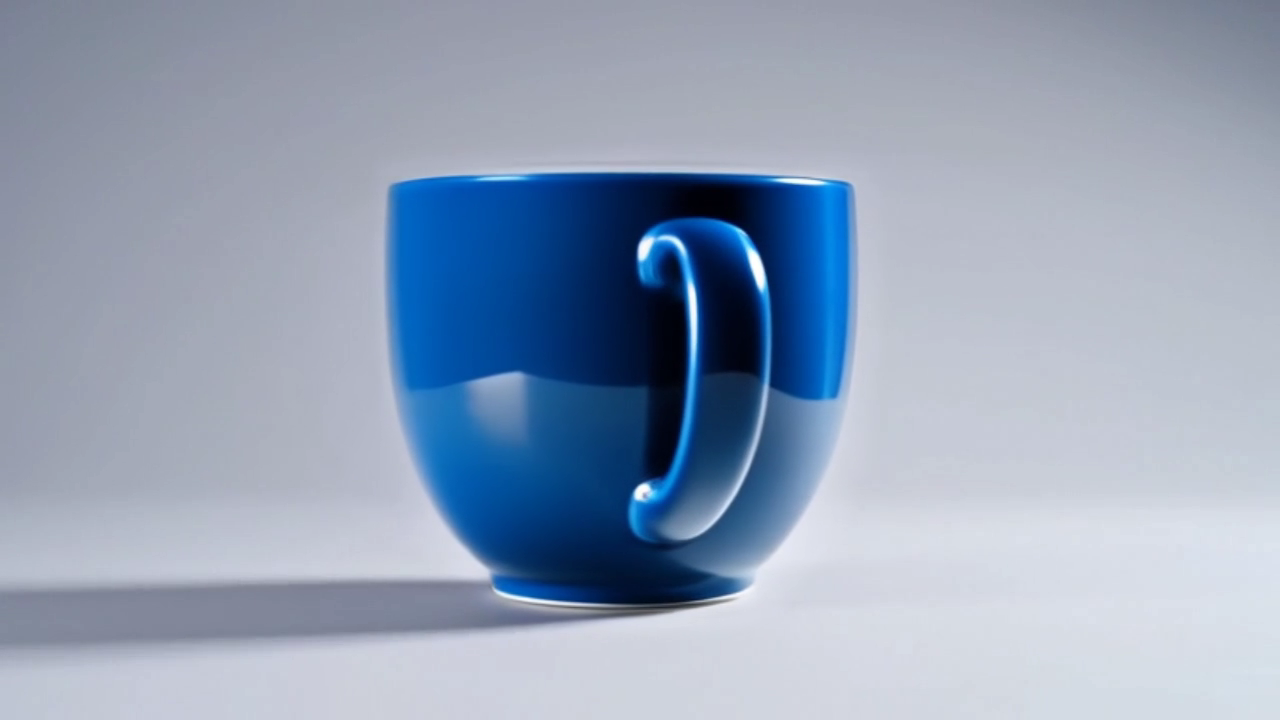

Exact mask used for this edit
1280 × 720 mask; a 39 × 26 white rectangle starts at (1235, 687). White indicates the area to erase; black indicates the area intended to remain. Open the image to inspect it at full size.
Load a player, then press Play. Watching this example does not upload your video or use credits.
Processed on 2026-10-21 with wavespeed-ai/video-eraser, using the applied 39 × 26 pixel rectangle at (1235, 687).
The original Veo 3.1 Fast clip was published by wiltodelta/remove-ai-watermarks under Apache 2.0. This website trimmed it to five seconds, created the mask in its editor and processed the clip. It did not generate the original.
This result removed the visible wordmark but also changed the mug’s orientation and other details outside the selected area. Compare the whole clip before using an AI edit. This is one observed result, not a guarantee. SynthID removal and provenance metadata retention have not been verified.
Official model examples
View input and output examples published by the model provider on WaveSpeedAI. These are provider demonstrations, not videos processed by this website. Your result will depend on your video and settings.
View the official model examples ↗When to use this tool
- Mark a static logo, text area or object with rectangles on the video preview.
- Choose the area to edit when automatic watermark removal targets the wrong place.
- Try a marked edit after reviewing a free or automatic result that still needs work.
How to use it
- Choose a video of up to 60 seconds and mark areas on the paused preview. The same areas apply throughout the clip.
- Undo, clear or adjust rectangles, inspect the black-and-white mask and apply it. Sign in and check the estimate.
- Start processing, wait for the result here and check the edited area before downloading.
How this differs from the free tool
The free browser tool fills or blurs a marked area on your device. These AI tools process the video you choose to upload in the cloud and use paid credits.
Your original file and free result are not transferred automatically. Choose your video here when you are ready.
Use the free browser toolCompare a project-provided sample with a visible Gemini four-point star and the actual result from this site’s free browser filter.
View the real free-tool video exampleReview the output
AI can leave artefacts, change details or fail to remove a mark. Moving, transparent or large marks can be difficult. Keep the original and check the output before using it. Only process media you own or have permission to edit.